|
Overview
You can edit existing values of coded terminologies fro the edit
button within the setup screen or through
the update screen You
can then choose to edit existing values in the coded terminologies with
the following options.
This is available through the
screen as shown in this example.
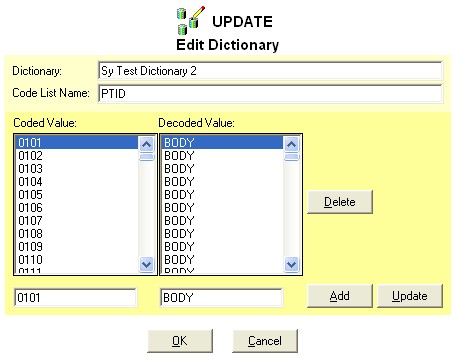
Rename Dictionary
On the update screen, you can just type in a new name in the
dictionary name entry and then click on the OK button. This would
update the existing dictionary to the associated new name.
Rename Code List Name
Similar to the dictionary name, on the update screen, you can just
type in a new name in the coded list name entry and then click on the OK
button. This would update the existing coded list name to the
associated new name.
Delete Coded Value
You can select one or more items from the list of coded terms.
When the Delete button is then clicked, a confirmation will be
presented. You then have the option to delete the selected items or
cancel.
Add New Values
The text entry at the bottom of the list of coded and decoded
values allow you to enter a new value. After a new value is
specified, it can be applied through the "Add" button. It is
required in this case that the coded value be unique and different from
the existing values.
Update Existing Values
The text entry at the bottom of the list of coded and decoded
values allow you to edit and update existing coded values. You can
change either the code value, decoded value or both. To apply the
update, click on the update button. If both values already exist, it
will not allow you to apply the update.
|


