|
Updates Overview
Updates to coded terminology dictionaries can be applied to a single
or between two dictionaries. This update is accessible from the main screen as shown here:
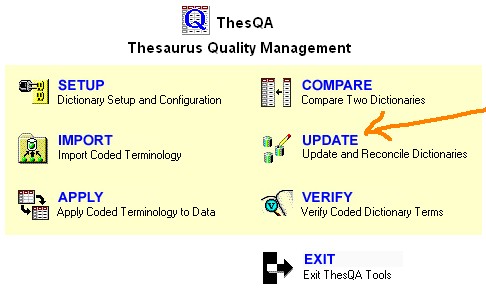
The four main tasks performed by
the update tools include:
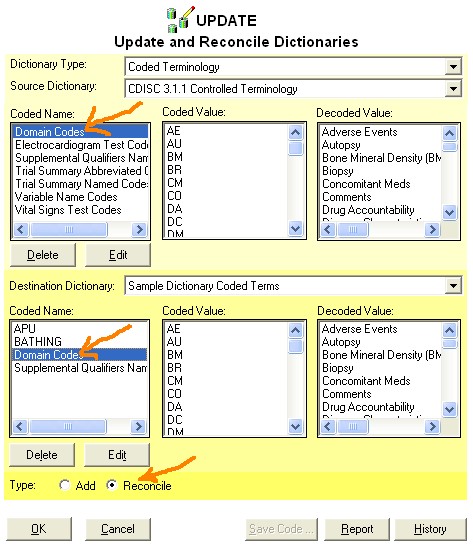
There are two types of dictionaries
that can be updated from the update screen. The
controlled coded terminology is selected in this example as shown here:

Edit
Coded values and the associated decoded values for any set of
coded terminologies can be edited and updated. This is accomplished
by selecting the coded name and clicking on the edit button. This
will present the edit dictionary screen as shown here:

This will list all the coded and associated decoded terms for the selected
dictionary. You can perform the following tasks within the edit
screen:
- Delete Terms - You can
select one or more terms on the list and then click on the
"Delete" button. After confirmation, it will remove
the selected terms.
- Add Terms - You need to
type in new unique values in the two text entries below the coded
value and decoded value list and then click on the Add button.
This will insert the value into the current dictionary.
- Update Existing Terms - A
terms needs to be first selected. The original text will then be
shown in the two text entries below the lists. Apply updates to
the entries and click on the update button.
Delete
Dictionaries contain many sets of coded and decoded terms.
Each set is grouped together and identified through a single name which is
used as a unique identifier. This is referred to as the "Coded
Name". You can choose to delete the set of coded values and
decoded values associated with the identified coded name by selecting on
the coded name and clicking on the "Delete" button.

A confirmation is presented before
the deletion is actually applied. Once applied, the list of coded
and decoded terms will no longer be available through this dictionary.
Add
Sets of coded terms can be added from a source dictionary to a
destination dictionary. You can apply this by selecting one or more
source sets of coded terminologies through the "Coded Name"
list. You would then select the update type of "Add" as
shown here:

You would then click on the OK
button to add the selected set of coded terms from the source to the
destination dictionary.
Reconcile
Sets of coded terms which are stored in different dictionaries needs
to be synchronized. In this case, if the sets of coded and
decoded names are different, there will be a reconciliation. This can be applied by
first selecting one coded name from the source dictionary and then
selecting another coded name
from the destination. The "Reconcile" type is selected and
then the OK button is selected to have the reconcile screen displayed.
The reconciling process would then
display those coded name sets that are mismatch for your reconcilliation.
The following example shows how the same coded name have different coded
and decoded values.
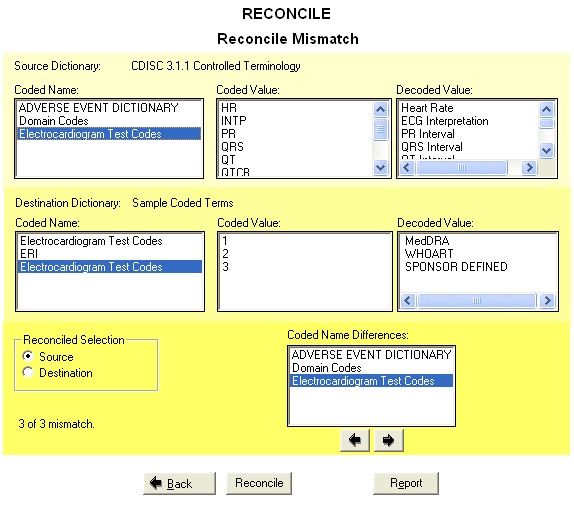
The steps to performing the reconciliation
as follows:
- Select Coded Name - A
list of coded names is listed between the two dictionaries that are
being reconciled. You can select on the coded name from either
the two dictionaries or the names listed below under the "Coded
Name Differences".
- Source Destination - You
would then determine between the two sets of source and destination,
which is the correct set. This can be selected through the radio
buttons or by clicking on the list of coded or decoded values.
- Reconcile - By clicking
on the reconcile button, you will apply the selected reconcile coded
name.
Saving
Update Macro Code
The same selections that is made in the graphical user interface can
be expressed in macro named %tupdate.
You can select this through the "Save Code..." button. The
sample code that is generated would look like:
libname Thesqa "C:\Program Files\MetaXceed\ThesQA\data";
%tupdate(inthes = CDISC 3.1.1 Controlled Terminology,
outthes = Sample Coded Terms,
type = Add,
dtype = code);
This same program can then be
executed in batch mode to perform the same dictionary update.
Reviewing
Update History
An audit trail of all dictionaries that was updated is kept in the history. This
history can be reviewed and searched through the "History"
button. A history view looks like the following:
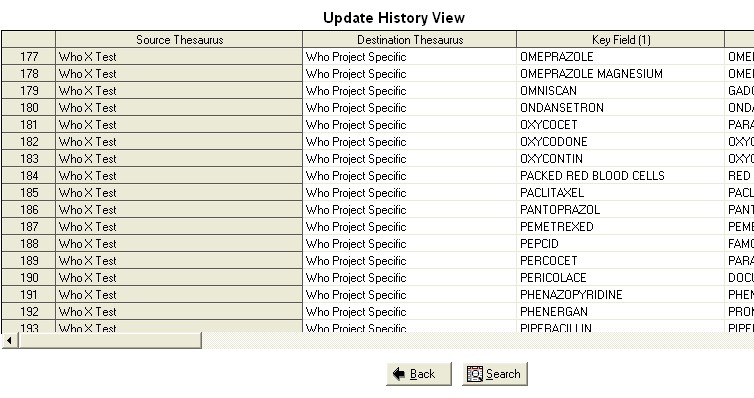
The audit trail captures all data
that has been updated including when and who has applied it. This
information can be searched by any field. The search criteria in
which you specified will be applied to all the fields captured in the
audit history.
|


