|
Initiating Program Lock
The first step in initiating the validation process is to lock the
program. This will ensure that the validation is not trying to test
a moving target. You apply this by right mouse clicking on the
program and selecting "V - Lock for Validation".
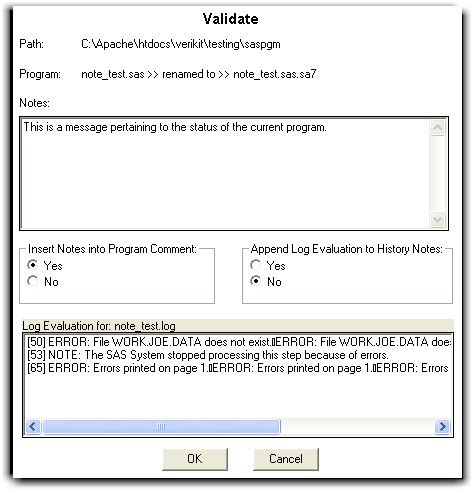
This will change the program name
by adding a new file extension (.sas7bak).
 |
By changing the
file extension, the file options are changed. You
therefore will not be able to submit this file as a SAS program. |
It is optional to have the same
entered comment inserted into the SAS program in the header section. Sy/Validate
can decipher two types of SAS comments in the header section.>
/*** Comment Style 1 ***/
 *** Comment Style 2 ***;
If the header in the program is of
comment style 1 then the following code will be inserted.
Notes: This is a message pertaining to the changes applied to the program.
By: Current User, 09/05/2003, 2:26:45 pm
This will be at the bottom of the
comment section before the ending ***/.
If the header in the program is of
comment style 2 then the following code will be inserted.
* Notes: This is a message pertaining to the changes applied to the program. *;
* By: Current User, 09/05/2003, 2:32:06 pm *;
This will be appended to the end of your header section block.
 |
The selection of
"Yes" and "No" for the note insertion will be
retained for each user. This means that the next time you
enter a note as part of a backup; the same selection will be
defaulted according to what you selected previously. |
For convenience, a log evaluation is presented at this step. It
is optional to insert this text to the notes that is recorded within the
audited history.
|
|
- The selection of
"Yes" and "No" for the log evaluation insertion will be
retained for each user. This means that the next time you
enter a note as part of a backup; the same selection will be
defaulted according to what you selected previously.
- The notes field can only
contain up to 1000 characters. When this is combined with
a long log evaluation, part of the log evaluation may be
truncated if it exceeds the maximum length.
- If notes exceed 1000
characters, this will be truncated in the history database.
If however you select the notes to be inserted into the program
header, the whole message will be inserted into the program
header but the database will contain the truncated text.
|
|
If the program has never been versioned before, you will get the
following message.
WARNING: The selected program: myprogram.sas does not exist in the
audit history. Do you want to version the current program?
You will then have the choice to version this program with notes
before proceeding. |
Performing Log Evaluation
An effective way to ensure that the program has executed successfully
is to evaluate the log file. It is common to search for error
or warning messages. In addition to these messages, you can perform
a more detailed evaluation by right mouse clicking on the log file and
selecting "V - Log Evaluation".
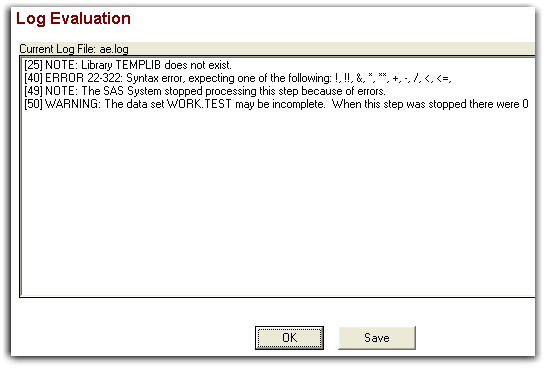
This captures all
"cautionary" messages that are considered important for
review. The messages are preceded by the line numbers where they
were found within the log file. If you need to record this for
documentation, you can click on the save button and a text file will be
created within the same location named "logeval_"
followed by the name of the original log file.
Log evaluation can also be
executed in batch mode on multiple log files at once with the %logeval
macro.
|
During program
debugging or verification, it is useful to use the "V - Log
Evaluation" option. However, when you need to generate
documentation for multiple log files, it is recommended that you use
the %logeval macro. This gives you the option of capturing the
evaluation of all programs in your specified directory more efficiently. |
|
You can also
select on the folder level and select "V - Log
Evaluation". In this case, all the log files in the
directory is available for log evaluation. All the log files
would then be listed at the top list. Upon selection, the log
evaluation will be displayed below. |
Adding Notes
During Verification
The verification process involves checking the log, output and perhaps
creating a separate program to verify that the results are correct.
It is important to record the status and results during this verification
process. This is accomplished by right mouse clicking on the locked
file and selecting the option "V - Notes".

You can select the items within
the task list that have been completed. The status is intended to
record where you are during the process. For example, it can signify that there
are problems found and that corrections are needed, or it could indicate
that verification is completed successfully.
The status indicates what step of
the validation process is being performed. The items in the pull
down menu can be customized through the %vconfig
macro. By default, Sy/Validate contains examples including:
- Development - The program is
still in development.
- Verification Started - This
initiates the verification process.
- Verification Passed - This
captures that verification passed all tests conditions.
- Verification Failed - This
signifies that something had failed during testing.
- Verification Passed +
Production - This combines the step of indicating that the
verification was a success and it also promotes the program into
production. In this case, the version number is incremented by
one integer number.
|
Items within the
tasks and the status can be configured and customized. This is
done through the %vconfig macro.
|
Unlocking Program
In the event that the verification process reveals that there are
required corrections, the program needs to be unlocked
and changed. This is accomplished by selecting the option "V
- Unlock". This does the following:
- Changes the file name back to
its original name without the lock (.sas7bbak) extension
- Allows you to add a note
recording additional comments about this step
|
The original
author of the program or the person who applied the lock is the
person that can apply the unlock. |
Setting Program to Production
After the program has been verified, the program can be set to production
mode. This is accomplished by selecting the "V - Production
+ Unlock" option.
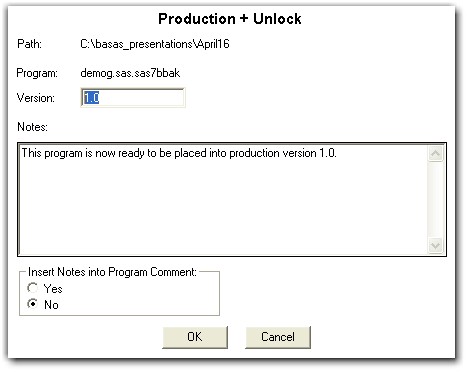
A production version can have any
version number associated with it. You can use decimal values such
as 1.1 to represent incremental updates or integer increments such as 2.0
for larger updates to production releases. Upon setting this to
production, the program name will be set back to its original name without the
lock (.sas7bbak) file extension.
|


