|
Set up configuration parameters for
Chayge
%vconfig (param = name of configuration parameter,
         value = value to be set for parameter,
         print = print all parameters);
| Where |
Is Type... |
And represents... |
| param |
C (40 chars) |
Short name for configuration parameter (i.e.
Verification Task). |
| value |
C (200 chars) |
Value which is assigned to the parameter. |
| print |
C (optional) |
Optional request to print out all parameters.
Valid values include:
|
| curlib |
Libname
(optional) |
Current location to
the programs being validated. The location is defined as a SAS
libname named "curlib". If this is not defined, the
current path is used.
|
Details
This tool allows the you to configure system level parameters for the
Chayge. The macro interface allows easy access for administrators to set
system configuration parameters. Valid parameters include:
- Verification Task [1...n] - Short
name to describe tasks that need to be done during verification.
By default, the values are set to:
- SAS Program Header
- SAS Variable Names
- Appropriate Keep and Drop of Variables
- Derived Variables
- SAS Dataset Names Clarify and Uniqueness
- SAS Dataset Labels
- Data Values
- Output Titles and Footnotes
- Output Values
- Verification Status [1...n] - The
status levels during verification. The default values include:
- Development
- Verification Started
- Verification Passed
- Verification Failed
- Verification Passed + Production
- Signature Name [1...n] -
The name of the person to be included in the acceptance signature
page.
- Signature Title [1...n] -
The title of the person to be included in the acceptance signature page.
Note that if all parameters are left blank then an interactive
configuration interface will be available. This allows for interactive
editing of configuration parameters.
Example
%vconfig (param=Report Type [1],
              value=Listings);
%vconfig (param=Report Type [2],
              value=Summary Tables);
%vconfig;
Interactive Configuration
The interactive interface allows you to edit and add
configuration options interactively. This allows you to do the following:
- Add Row - Adding a new configuration parameter
- Edit - Editing and updating existing configuration parameters
- Delete Row - Deleting an existing configuration parameter
Add Row
You can add a new configuration parameter by right mouse clicking on
the configuration list and selecting the add row item.
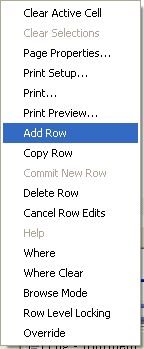
The number column label is changed to NEW and you are prompted to
enter a configuration parameter and value. The configuration
parameter has to be one of the valid parameters listed above. Upon
completion, right mouse click on the menu again and select commit new row.
Edit
The entire table is available for edit at any point. Just click on
any of the items and start typing. Note that if the dataset is
locked by another user or session, you will not be able to apply any
updates.
Delete Row
You can delete a configuration parameter by selecting any item in the
row and then right mouse clicking to select the delete row item within the
list.
|


