Migrate SAS programs with rule-driven fixes, original backups, findings, comparison, and history.
Migrate Studio identifies SAS programs in a selected folder, applies migration rules, writes approved fixes in place when supported, preserves originals, and records migration history.
Quick start #
- Start Migrate Studio with
python migrate_studio.py, then click Folder and choose the study or program root containing the SAS programs. - Choose MC pack or Workbook rules, confirm the OS family and path root when relevant, and review the selected rules.
- Select the programs to process and click Apply Fix. Migrate Studio verifies or creates original backups before writing fixed programs in place.
- Review Fixed SAS, Fix Compare, Findings, and History. Use Revert if the live program must be restored from its original backup.
_migrate_original backup beside each program directory. Existing backup files are not overwritten.Screen layout #
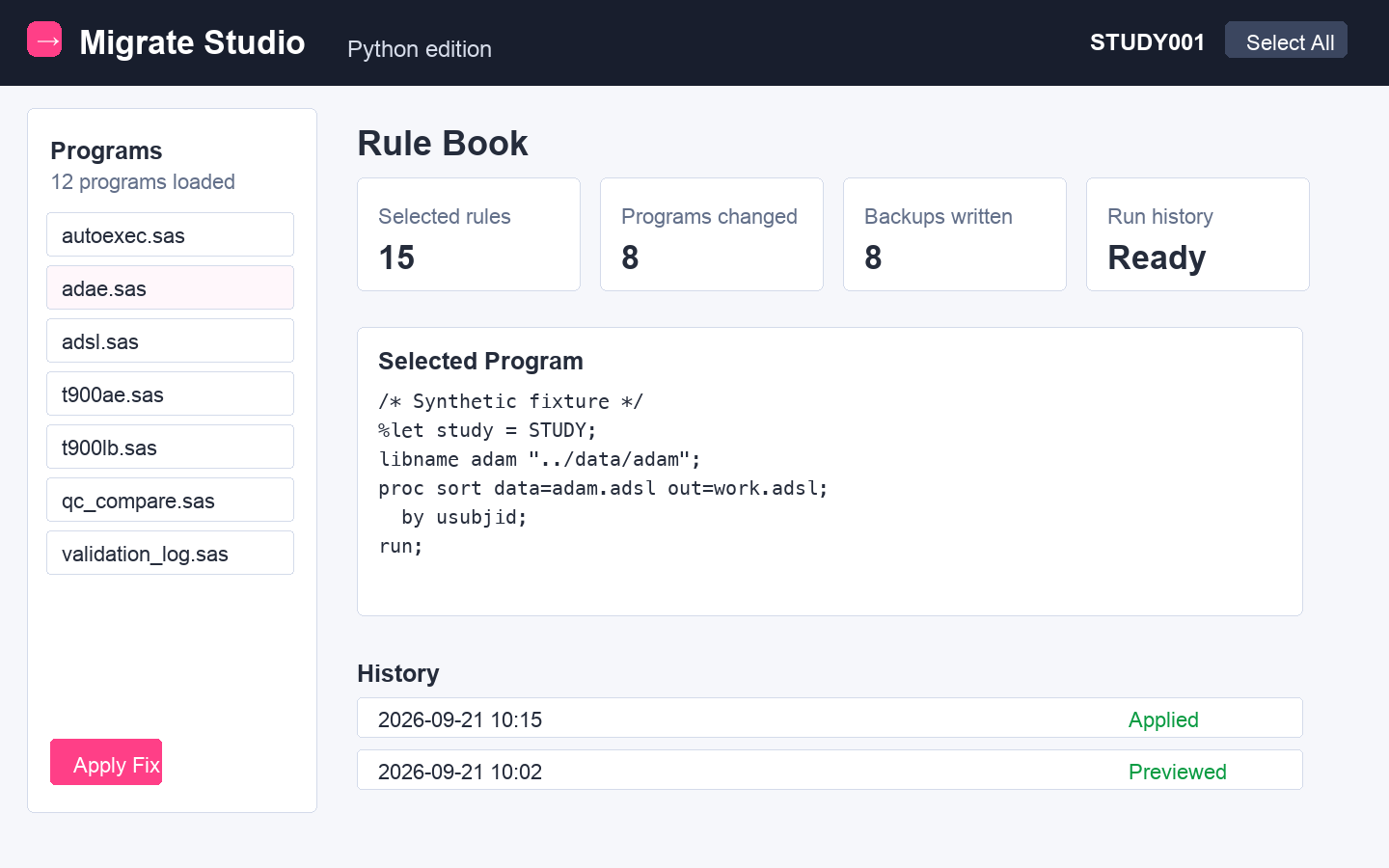
Left · Programs
Choose a folder, filter by folder/program name, select multiple programs, and see each program's current change count.
Center · Workspace
Use Rules, Fixed SAS, Fix Compare, Findings, and History for the currently selected program.
Right · Details
Review program status, change totals, rules applied, and recent versions without leaving the current tab.
Top · Actions
Save, Apply Fix, import/export rules, downloads, Profile, About/Release Notes, and Sign Out.
Folder selection #
Click Folder in the left program rail and choose the study or program root. Migrate Studio reads *.sas files recursively and ignores migration output folders such as _migrate_original, Migrate_Studio, and target platform_Migrate.
If a root-level Migrate_Studio_Rules.xlsx exists in the selected folder, the app can load that workbook automatically. The path shown above the program list identifies the selected root.
Reopening a previously migrated folder #
When the selected folder contains matching _migrate_original backups, Migrate Studio reads history.json and restores prior migration state for matching programs. It reconstructs rule hits, line-level details, fix counts, prior applications, and the original-versus-fixed relationship.
The left rail then shows the recovered number of changes beside each program. When a recovered program is clicked, its original is loaded from _migrate_original and Fix Compare opens with the previous migration information available.
Program navigator #
The left rail is both the program navigator and the multi-program Apply Fix selection list.
| Control | Use |
|---|---|
| Folder | Choose or reconnect the root folder containing SAS programs. |
| Select All / Deselect All | Selects every program currently shown by the search/filter; once all are selected, the button changes to Deselect All and clears them. |
| Program checkbox | Include that program in a multi-program Apply Fix run. |
| Program name | Make the program active in the center workspace and right-side detail cards. |
| Change count | Shows the current or recovered number of fix details for the program. Recovered values can come from history.json. |
| Search folder or program | Filter by folder, program, or both. Ending a folder term with / matches that folder exactly. |
| Footer stats | Shows total programs, fixed programs, and selected/runnable rules. |
Migration name #
Click the editable label beside Migrate Studio in the top bar to set the migration name. The label is saved as a preference and is used by the app where migration naming is included in generated or fixed-program context.
Rules #
The Rules tab controls which rule source is active and which executable rules will run. The current build exposes the rule source, target OS family, folder path root, a rule filter, and import/export actions in the same toolbar.
| Control | Purpose |
|---|---|
| Rule source | Switch between MC pack and Workbook rules. |
| OS family | Select LINUX or WINDOWS for MC contextual rule evaluation. |
| Folder path root | Provides path context to MC checks that need to evaluate folder-level or path-dependent conditions. |
| Filter rules | Narrow the visible Rules grid without changing the underlying rule book. |
| Import Pack | Load a MC JSON rule pack manually, especially useful when the app is opened from file://. |
| Import Rules | Load an Excel workbook rule book. |
| Export Rules | Download the currently loaded workbook rules, preserving the original workbook bytes when possible. |
MC pack #
The shipped default is rules/migration_rules.json, transcribed from migration_check.sas v4.30. Ticked auto-fix rules run in the order defined by the MC macro; report-only MC rules are evaluated for Findings even when they are not directly executable.
MC processing uses the selected OS family and contextual information such as the program path, program directory, picked folder, path root, operator, and run date.
Workbook rules #
Workbook rules come from Migrate_Studio_Rules.xlsx or another imported workbook. The app recognizes flexible header names for rule ID, title, description, category, Before/After patterns, conditions, risk, scope, enabled state, and related metadata.
Ticked executable rules run in workbook order. Documentation-only rows are shown but cannot run, while rules with unresolved parameters are protected from accidental execution.
Apply Fix #
Apply Fix runs the selected executable rules against the active program or all checked programs. The application calculates changes first, prepares original backups, writes updated SAS text to the live files when the folder is writable, refreshes Findings, records a program version, and appends an Apply Fix run to migration history when changes occurred.
You can start Apply Fix from the top bar, the program header, or the Fixed SAS toolbar. If every target is already marked as applied, Migrate Studio skips the write rather than reprocessing the same programs.
Backup safety #
Before the first in-place migration of a directory, Migrate Studio creates a local _migrate_original subfolder and copies that directory's SAS programs into it. Backups are flat within each program directory and are write-once.
Fixed SAS #
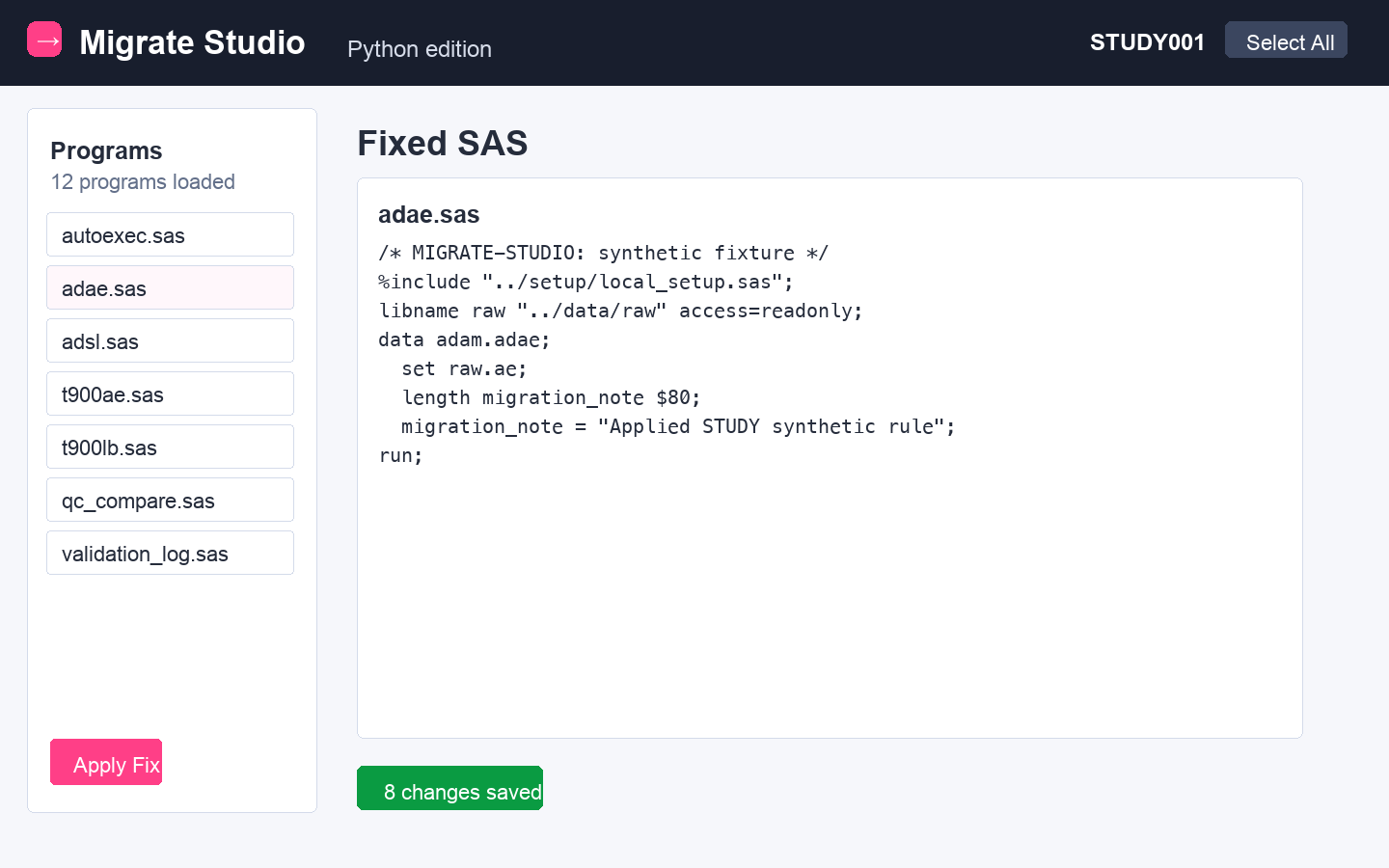
The Fixed SAS tab displays the current fixed program with SAS syntax coloring. The code panel can be expanded, collapsed, or opened fullscreen for large programs.
| Apply Fix | Run the current rule selection against the applicable program target(s). |
|---|---|
| Reload | Refresh the displayed fixed program from the current application state. |
| Copy | Copy the fixed SAS text to the clipboard. |
| Download | Download the active fixed SAS program. |
| Download Updated Programs | Download the set of fixed/updated programs as a ZIP. |
Fix Compare #
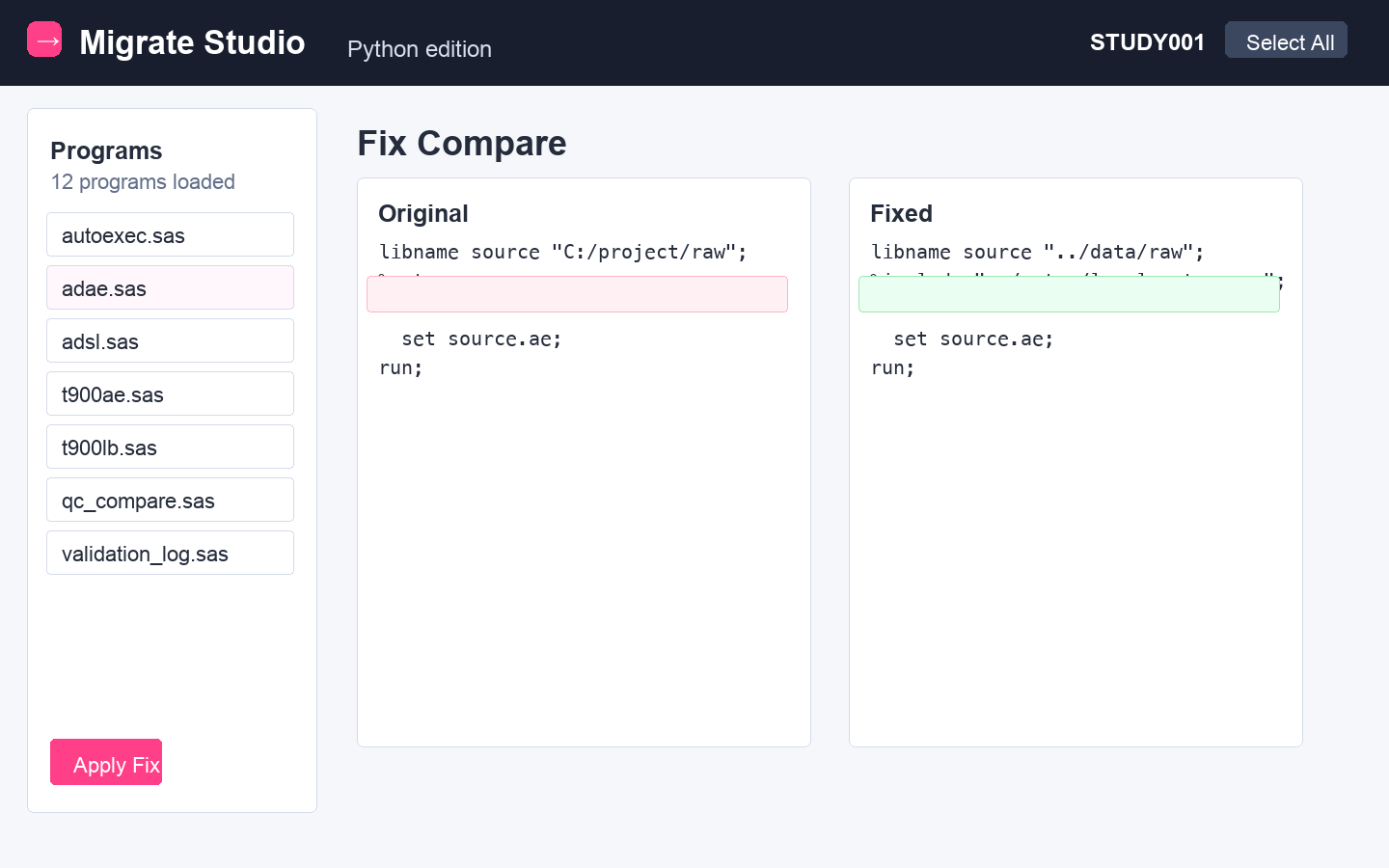
Fix Compare places the original SAS program on the left and the fixed version on the right. The panes are aligned and scrolled together so line changes can be reviewed without manually locating the same area twice.
| Control | Use |
|---|---|
| Changes only | Hide unchanged context and focus on migrated lines. |
| Version | Choose the original/reference version used for the comparison when versions are available. |
| Previous / Next | Jump between modified lines. When exactly one line is modified, the modified-count link jumps directly to that line. |
| Expand / Fullscreen | Increase the comparison area for long programs. |
For a program restored from migration history, Migrate Studio loads the original text from the corresponding _migrate_original file and reconstructs prior rule hits from history.json before displaying the comparison.
Findings #
The Findings tab is available for the MC pack. It scans the current program and folder-level inventory rules and displays findings by Rule ID, Rule Name, Category, Program, Line, Criteria, and Line Text.
Findings are refreshed after relevant rule-context changes and after Apply Fix. If no Folder path root is supplied, path/folder checks such as F1/F2 are evaluated against the picked folder only.
Switching to Workbook rules disables MC Findings and the tab explains that the MC pack must be active to scan them.
History #
The History tab has two independent views: Migration History for Apply Fix runs across folders and This Program for versions of the selected SAS program.
Migration History #
Migration History reads history.json from your per-user data folder, which is printed when Migrate Studio starts, and merges it with browser-only run records when necessary. Each run can include the run time, operator, root folder, subfolders, rule source, programs changed, rule applications, line details, and totals.
| Control | Use |
|---|---|
| Search program or rule | Filter run history by program text or rule information. |
| My runs / All users | Limit the dashboard to the current profile/identity or show all recorded operators. |
| All folders | Filter runs by the root folder recorded in history. |
| Download | Download the current migration history/report representation. |
The dashboard summarizes Apply Fix runs and can show cumulative programs updated versus cumulative fixes applied when enough runs exist for a trend.
This Program #
Every Apply Fix, Revert, and restore operation can add a program version. The Fix History panel lists versions newest first and lets you search them, expand the panel, open fullscreen, or inspect a selected version in detail.
Program version history is browser-local and mirrored to localStorage. If storage pressure becomes high, old version bodies can be dropped while retaining the record of what changed.
Revert #
Revert restores the selected live program from the _migrate_original backup in the same program directory. The reverted-away fixed copy remains represented in program history rather than being silently erased.
After a successful revert, the program's applied state is cleared so it can be migrated again if needed. Revert operates at the selected-program level, not as a bulk rollback of the entire folder.
Save #
Save writes the current fixed or restored text back to the live program file when the selected folder is writable and records the resulting state. The keyboard shortcut is Ctrl+S or Cmd+S.
In read-only fallback mode, Save cannot write into the selected folder and therefore becomes a download-oriented workflow instead.
Downloads #
| Download | What it contains |
|---|---|
| Updated Programs | ZIP of the current updated/fixed SAS programs. |
| Update Summary | Excel workbook summarizing migrated programs, detailed changes, and rule information. |
| Fixed SAS Download | The currently selected fixed SAS program. |
| Findings | MC findings workbook with detail, summary, rules, updates, and report metadata. |
| Migration History Download | Download generated from the migration-wide History view. |
| Export Rules | The active workbook rule book when workbook rules are loaded. |
Profile #
Open the ⋯ menu and choose Profile to set the user's name and email. The name is used in fixed-program headers and is also the operator value associated with migration history where applicable.
The same overflow menu also provides Import Rules, Export Rules, Download Updated Programs, Download Update Summary, and Sign Out.
Browser and folder modes #
| Capability | Chrome / Edge | Firefox / Safari |
|---|---|---|
| Read a selected folder | Yes | Yes |
| Apply fixed programs in place | Yes, with granted write permission | No |
| Save fixed programs in place | Yes, with granted write permission | No; Save falls back to download behavior |
| Remember/reconnect directory handle | Supported by the File System Access API | Not available |
Firefox and Safari use the directory-upload fallback and therefore operate read-only. When the application is opened directly with file://, the browser may also block automatic loading of the MC JSON pack; use Import Pack in that case.
Troubleshooting #
| Symptom | What to check |
|---|---|
| Folder opens read-only | Use Chrome or Edge and grant read/write permission when prompted. Firefox/Safari do not support in-place writing for this workflow. |
| MC pack is unavailable | Start with python migrate_studio.py or use Import Pack to select migration_rules.json. |
| No Findings are shown | Confirm MC pack is the active rule source and that the current program/folder produces findings. |
| Apply Fix skips a program | The program may already have an original backup or recorded in-place Apply Fix history and is therefore treated as already applied. |
| Fix Compare has no original | Verify the matching file exists in the program directory's _migrate_original folder. For restored history, the backup is required to reload original text. |
| Migration History is browser-only | The app could not read/write history.json. Run through the local Python server and verify the user data folder printed at startup is writable. |
| Backup modified date is current | The app likely used browser fallback instead of the server-resolved shutil.copy2() path. |
Direct section links #
Every functional section has a stable HTML anchor. Append the anchor to user_manual.html when linking users directly to a specific topic.