Overview
Coded terminologies stored in dictionaries managed by ThesQA can be
imported. Importing coded terms is preferred over manually adding or
editing since it is a much more efficient and accurate. You can
access the import tool either by calling a macro
%importcode
or by clicking on the "IMPORT" from the main screen.
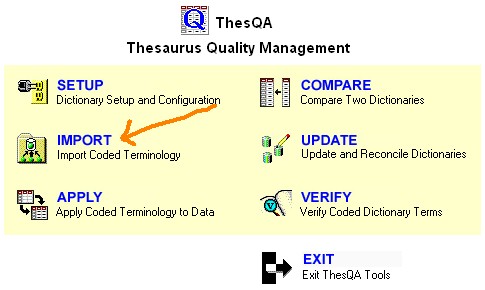
The main options in applying an
import includes the following:
Selecting Import Source Type
Coded terminologies consist of coded and decoded values. This
information can be stored in different sources including the following:
- SAS Format Catalogs
- SAS Datasets
- Existing ThesQA Dictionary
Before you can start performing
imports to your dictionary, you must therefore select the type of source
data that will be imported. This can be selected through a list box
as shown here:
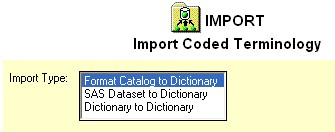
You must select one type before
performing the import. The selection of the import type will
therefore update the import source that will be imported to the
destination dictionary.
Import Source
The selection of data to be imported is different depending on the type
of data you are importing. In general the steps include:
- Selecting the source library or
location
- Selecting the coded name
- Reviewing the associated coded
and decoded values
The main difference is in step 1
where you select the source library or location of the data to be
imported. The selection for source type of format catalog is as
follows:
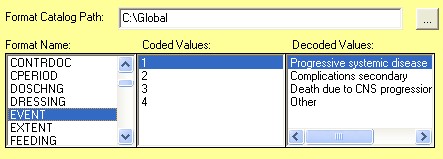
The first step is to select a path
where the format catalog is located. You can make this selection by
either typing the path or navigating through the [...] button. After
the format catalog has been identified, the format value name is
selected. The coded and decoded values are then available for review
upon selection of the format name.
When selecting SAS datasets as a
source, the first step is selecting the library where the SAS datasets are
stored. You can either type in a library name or select it through
the library manager available through the [...] button.
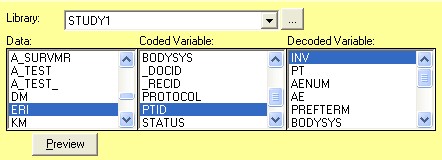
You would then select one
dataset. The list of variables within the dataset is
available. You can choose the variables which contains the coded and
decoded values. You can also select the preview option which will
generate a report of the first 100 observations. This will allow you
to see the values of the coded and decoded variables.
If the dictionary is selected as a
source, then you would select the source dictionary in very much the same
way you would select any dictionary through the pull down list.
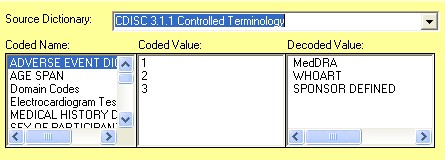
The list of corresponding coded
names contained in the selected dictionary. You can
therefore click on the coded name to review the associated coded and
decoded value.
Destination Dictionary
You must select the destination dictionary which the new information
will be imported to. This is available through the pull down menu of
the destination dictionary name list.
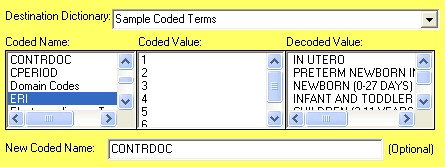
The list of coded name is
available for review but does not affect the import. By default, the
new name for the coded list is defaulted to the selected source. You
can however type a new name in the "New Coded Name" entry.
Applying Import
Once the source terminology data
and the destination dictionary have been selected, you can click on the
"Import" button between the two to apply the import.
The new imported values will then
be displayed in the list of coded names in the destination dictionary.
Saving Import Macro Code
The same selections that is made in the graphical user interface can
be expressed in macro named %importcode .
You can select this through the "Save Code..." button. The
sample code that is generated would look like:
libname thesqa "C:\Program Files\MetaXceed\ThesQA\data";
%importcode(sourcedictname=CDISC 3.1.1 Controlled Terminology,
sourcecodename=Domain Codes,
dictname=Sample Coded Terms,
codename=MYCODE);
This same program can then be
executed in batch mode to perform the same dictionary comparisons.
Reviewing Import History
An audit trail of all imported data is kept in the history. This
history can be reviewed and searched through the "History"
button. A history view looks like the following:
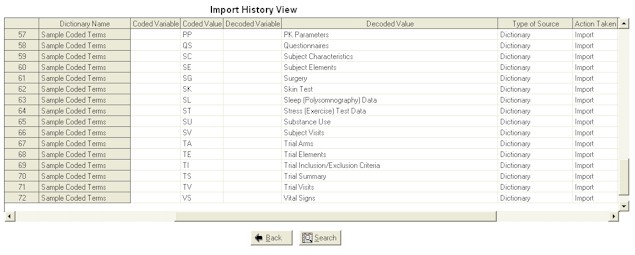
The audit trail captures all data
that has been imported including when and who has applied it. This
information can be searched by any field. The search criteria in
which you specified will be applied to all the fields captured in the
audit history.
|


