|
Requirements
Before you use Symap, be sure you have the following software installed on your
machine:
- Adobe Acrobat Reader 4.0
- Microsoft Internet Explorer 5.x
- SAS Viewer 8.x
- A current Windows ID and
password
- A Symap account
To request an account, contact your Symap Administrator.
If you are a Symap Administrator, be sure you also have access to the Trialex System.
Symap requires authorization to access the selected study. To request permissions, contact your project leader.
Configuring
Symap (Administrators Only)
Symap System Administrators may specify defaults and other behaviors for some fields that are included in
Symap screens.
For example, administrators may set user password expiration periods and warnings.
These parameters are stored in a system configuration database that Administrators can update and modify.
Logging onto Symap
To log into the Symap system, follow these steps:
- Open Internet Explorer and go to the following intranet site:
http://hal9000-web
- Select Symap Mapping
- Enter your Symap user ID and password in the Symap User Login
screen
Remember that your username and password are case
sensitive and that password entry will be masked with asterisks. (The number of asterisks displayed may differ from the number of password
characters.).
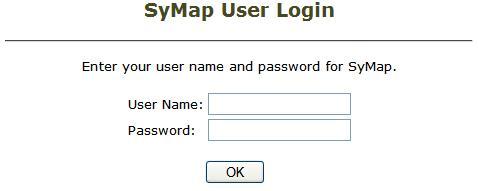
- Click on the OK button.
The Administration Tool tab is now displayed on the screen.
Symap verifies password validity against a system-wide parameter date
setting. If the password has expired, a message will prompt the user
to have it updated. The prompt includes a double entry for verification. The system also allows administrators to specify an option for displaying a password expiration warning when the system determines that the warning period has been reached.
Getting Around the System
After logging into the Symap System, the Administration Tools tab will be visible. The Administration tools module includes links (icons shown below) for viewing, mapping, searching, and administering dictionaries. Some tools include a Thesaurus search feature.
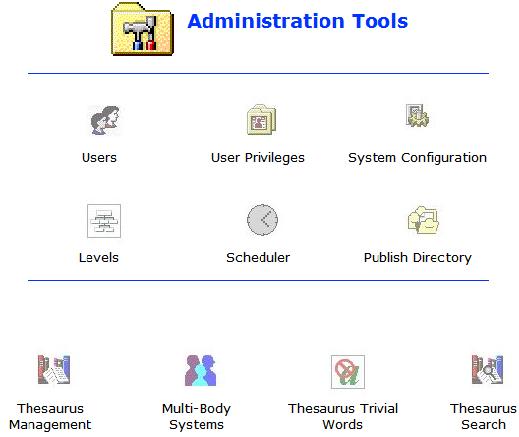
Clicking an icon category under the Administration Tools tab allows the user to drill down to a specific tool for access.
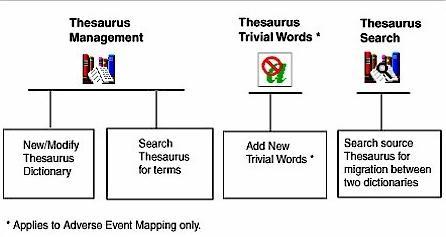
Following is an overview and a diagram of the features available within each main
Symap icon category shown above.
| Symap Administration Icon Links |
Description |
| Users |
Administrators are responsible for setting up Symap user accounts through the Users tool, which provides a wizard for adding and modifying account information, and a button to delete a user's account. Other users of
Symap may view and update their own account information only (with the exception of their user id).
|
| User Privileges |
User privileges required to access Symap dictionary data are granted using the User Privileges tool. The
Symap System manages privileges by study or project. Using this tool, both the administrator and the creator of a study have the ability to grant permission to others.
|
| Thesaurus Management |
Administrators can register existing or new dictionaries to the
Symap Meddra, as well as manage specific attributes dealing with the location of the dictionaries and the types of dictionaries.
|
| Thesaurus Trivial Words |
Applies to Symap Adverse Events System only.
|
| Thesaurus Search |
The Thesaurus Search tool conducts searches of Thesaurus dictionaries. |
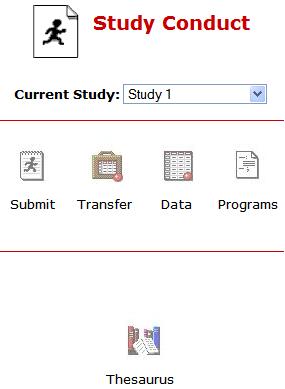
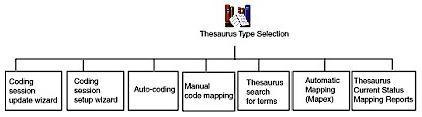
When you are ready to map adverse events, click the Study Conduct tab.

This tab contains the Thesaurus icon, which links to the
adverse event mapping screen.
The adverse event mapping screen contains buttons for performing mapping tasks, such as auto-coding, manual and automated mapping.
Following is an overview and a diagram of the features available within the Thesaurus Mapping screen.
| Thesaurus (Study Conduct) Icon Tools |
Description |
| Thesaurus Setup Wizard |
Administrators and Clinical Data Managers can add new coding sessions to
Symap Meddra. This identifies a coding session and allows multiple users to work on different sets of mapping.
|
| Thesaurus Update |
Administrators and Clinical Data Managers can update and edit attributes of existing mapping sessions.
These attributes include the location of the Thesaurus, the data set name that contains the Thesaurus information, and the type of
source and destination dictionaries.
|
| Auto-code Method Screen |
At the beginning of a mapping project, Clinical Data Managers perform the auto-coding task, which compares the source adverse events against specified dictionaries.
Auto-coding determines which adverse events have matches and which
terms are unmatched.
|
| Manual Code Mapping Screen |
After performing an auto-code for a mapping session, Clinical Data Managers can manually map unmatched adverse events along with items that have multiple matches through the manual coding process.
|
| Thesaurus Search Screen |
The Thesaurus Search tool conducts searches of Thesaurus dictionaries.
Note that this is the same tool provided through the Thesaurus Search icon under the Administration Tools tab.
|
| Thesaurus Map Screen |
After manual mapping is completed, Clinical Data Managers associate what is mapped into a new dataset. This process is referred to as "mapex."
Mapex merges the source data with the specified dictionaries, which can include terms that you have manually
mapped. It then creates a new analysis dataset. |
| Review Thesaurus Mapping Screen |
Reports can be generated to display the status of the current
mapping session. These reports include:
- Tentatively Mapped Terms
- Mapping History
- Unmapped Adverse Events by Patient ID |
Symap is accessed through a web browser. When you navigate through
Symap, you use the buttons on the Symap screens to perform specific tasks.
Symap screens also contain the following additional buttons:
Cancel - returns to the previous screen and cancels the current operation.
Back - returns to the previous screen, retaining all values on the current screen.
IMPORTANT: While in a Symap session, always use buttons within the
Symap system, such as the Back button, which takes you back to the previous screen. If you do use a browser button, you will be logged out of the
Symap session. This security feature allows the Symap system to prevent
entering the system from previously generated pages (which have been
expired) by unauthorized users.
|


